How to Fix a Laptop Microphone That Sounds Too Quiet
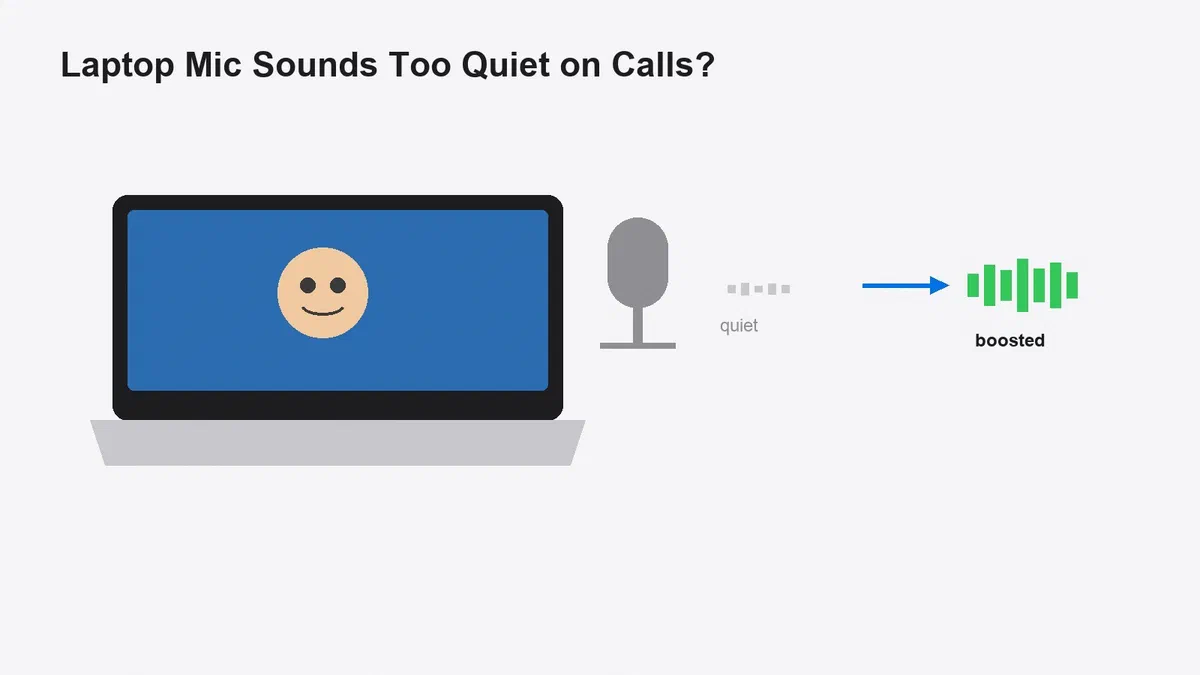
Hello folks! You’re on a Zoom call, everyone else sounds normal, and then someone asks “can you speak up?” for the third time this week. You check your laptop mic, the light’s on, it’s clearly plugged in or built-in and working… it’s just quiet. Really quiet. Turns out this is one of the most common laptop audio complaints out there, and the fix depends on whether it’s a Windows setting, an app setting, or your actual hardware.
Quick answer: A quiet laptop mic in Zoom or Teams is usually a Windows input level that’s set too low, a “Microphone Boost” that’s never been turned on, or an app-specific noise suppression setting fighting with your audio. Start in Settings > System > Sound > Input, raise the volume slider and Microphone Boost, then check your app’s own audio settings separately.
Why your laptop mic sounds quiet on calls but fine elsewhere
If your mic sounds fine in a voice recorder app but weak in Teams specifically, that’s actually a real, documented pattern. Analog microphone inputs (the built-in mic on a lot of laptops, or a 3.5mm headset jack) often come through at a much lower volume in Teams than in Zoom or a basic recording app, because Teams doesn’t auto-boost the signal the same way. So the cause isn’t always “your mic is broken”, it’s often “this specific app handles quiet mics differently.”
Other common culprits:
- Windows input volume or Microphone Boost is set low (or at the default, which is lower than you’d expect)
- Noise suppression in Teams or Zoom is clamping down on your voice along with background noise
- Zoom’s “automatically adjust microphone volume” is fighting your manual settings
- You’re using a cheap analog headset instead of a USB one, and the laptop’s audio jack just doesn’t drive it well
How to fix a quiet laptop microphone on Zoom or Teams
1. Raise your input volume and Microphone Boost in Windows
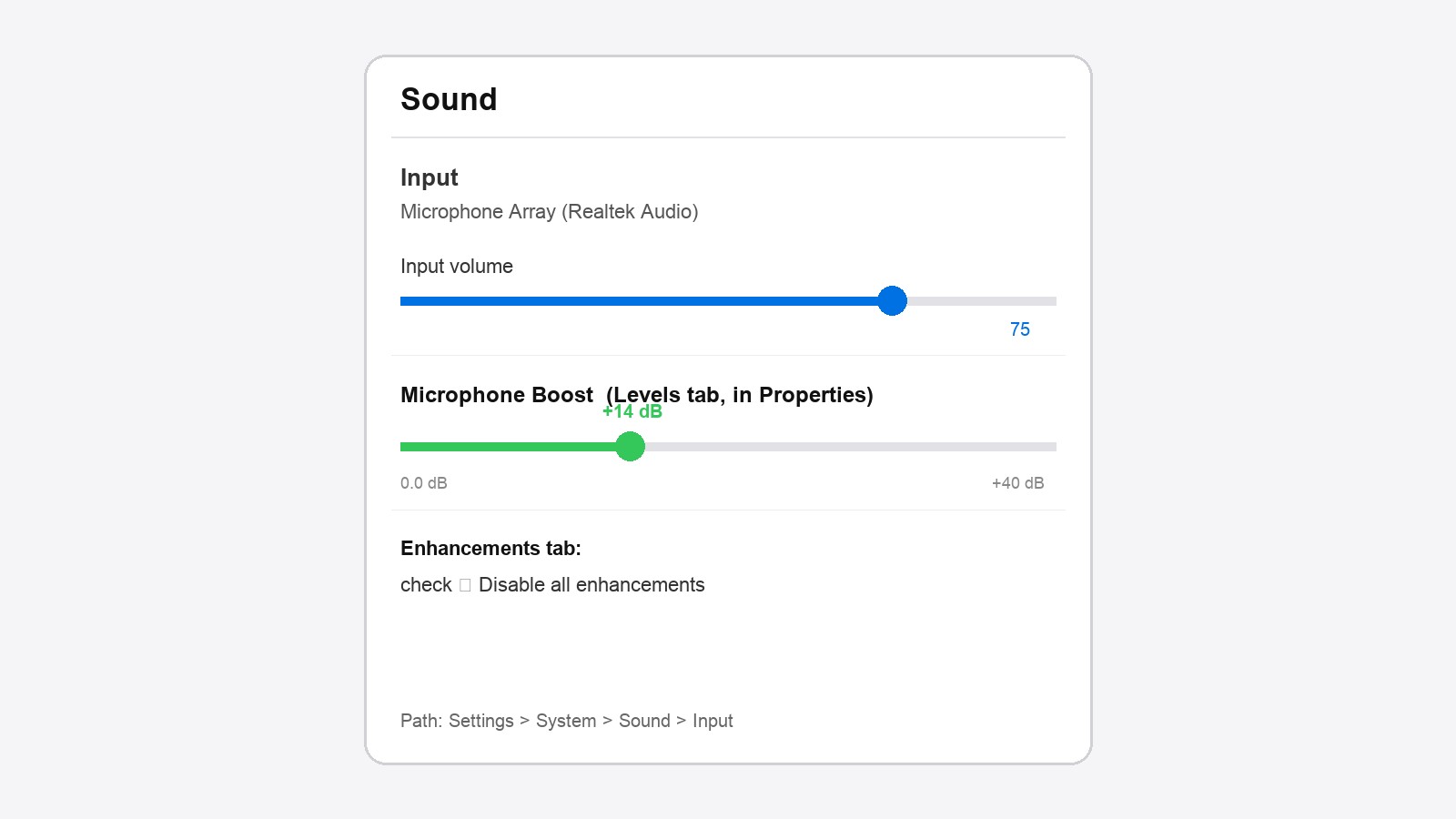
Go to Settings > System > Sound, then under Input, select your microphone. Drag the Input volume slider up and speak normally to see if the level bar responds better. For a bigger jump, click into the microphone’s advanced properties (or press Windows key + R, type mmsys.cpl, and open the classic Sound panel), go to the Recording tab, right-click your mic, choose Properties, then open the Levels tab. There’s a Microphone Boost slider there too, separate from the main volume, that can add up to +40 dB. Nudge it up in small steps since too much boost adds hiss.
2. Turn off audio enhancements that are clamping your mic
In that same Properties window, click the Enhancements tab and check the box for “Disable all enhancements.” Some laptop audio drivers apply their own auto-leveling or noise reduction before Windows even gets the signal, and it can undercut your voice more than it helps. This one’s easy to miss because it’s buried a tab away from the volume slider everyone actually looks at.
3. Fix it inside Teams specifically
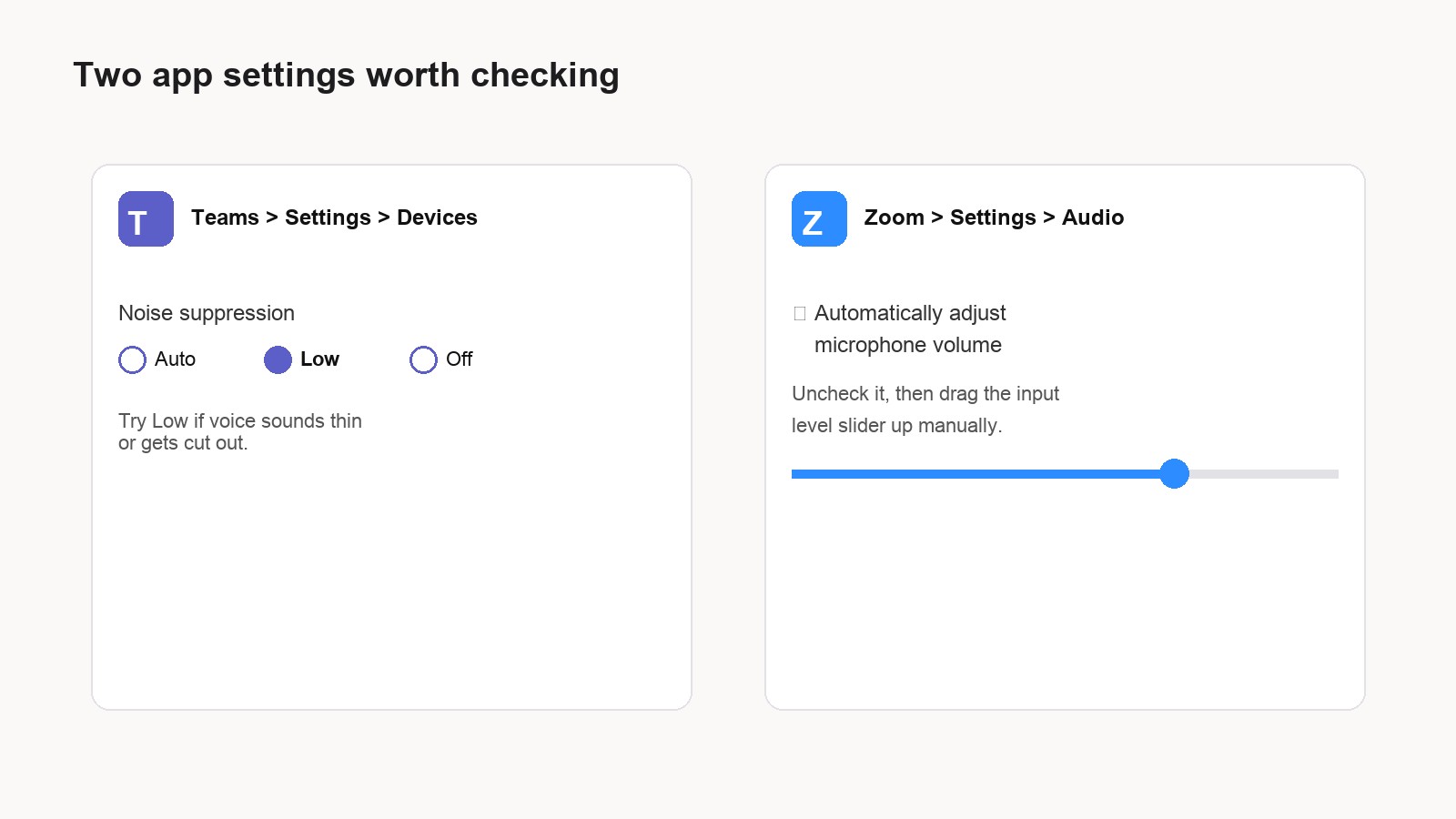
Open Teams, go to Settings > Devices, confirm the correct microphone is selected, then run a quick test call. Teams has its own noise suppression setting, look for it under Devices and try switching it from “Auto” down to “Low.” Teams’ noise suppression is more aggressive than Zoom’s, and on a quiet analog mic, it can suppress your voice along with the background hum it’s supposed to remove.
4. Fix it inside Zoom specifically
Open Zoom, click the gear icon for Settings, then go to the Audio tab. Uncheck “Automatically adjust microphone volume” and instead drag the input level slider up manually. Zoom’s auto-adjust sounds helpful, but on some laptops it undershoots and settles on a level quieter than you’d pick yourself.
5. Switch to a USB mic or headset if you keep hitting a wall
If you’ve maxed out the boost and enhancements and it’s still thin, the honest answer is that some laptops’ built-in mics or 3.5mm jacks just aren’t loud enough for video calls in a normal room. A basic USB headset sidesteps the whole analog-input problem, since USB mics have their own amplification built in and don’t rely on your laptop’s weaker onboard audio circuitry.
6. Make sure Windows has mic permission turned on
Occasionally the issue isn’t volume at all, it’s that Windows is only letting a trickle of signal through because of privacy settings. Check Settings > Privacy & security > Microphone and make sure microphone access is on, both generally and for the specific app (Zoom, Teams, or your browser) you’re using.
Tips and troubleshooting
- Test with the exact same headset in a different app. If it’s loud in Voice Recorder but quiet in Teams specifically, that confirms it’s an app-level noise suppression issue, not a hardware problem.
- Bluetooth headsets often swap to a lower-quality call profile the moment their mic is active, which is a separate reason for a volume drop that has nothing to do with any of the settings above. If you’re on Bluetooth, try a wired USB mic as a test to rule this out.
- Don’t crank Microphone Boost all the way to +40 dB right away. Past a certain point, you’re just amplifying room hiss along with your voice, and it starts sounding worse, not better.
Frequently asked questions
Why is my mic loud in one app but quiet in another?
Different apps process incoming audio differently. Some auto-boost a quiet analog signal, others (like Teams, in some configurations) don’t, which is why the same physical microphone can sound totally different depending on which app you’re using.
Does Microphone Boost hurt audio quality?
A small boost is usually fine. Push it too high, though, and you’ll start hearing background hiss and static along with your voice, since the boost amplifies everything picked up by the mic, not just you speaking.
Is a USB microphone actually louder than a built-in laptop mic?
Generally yes. USB mics carry their own amplification circuitry instead of relying on your laptop’s onboard audio hardware, which is often the weakest link for analog and built-in mics.
Will restarting my laptop fix a quiet microphone?
Sometimes, if a driver or audio service got into a bad state. It won’t fix a setting that’s simply turned down too low, so check the volume and boost sliders first before writing it off as a glitch.
For Windows’ own walkthrough on this, their official guide to fixing microphone problems covers the same settings in more depth, and Zoom’s audio adjustment help page is worth a look if the issue is specific to Zoom calls.
If your laptop’s been acting up in other ways too, we’ve also covered why some laptops won’t charge past 80 percent and what to do when the battery percentage gets stuck.
Did switching off noise suppression or boosting the input level actually fix it for you, or is your laptop’s mic still fighting you? Let us know in the comments what worked, it might save someone else three “can you hear me now” moments in their next call.